
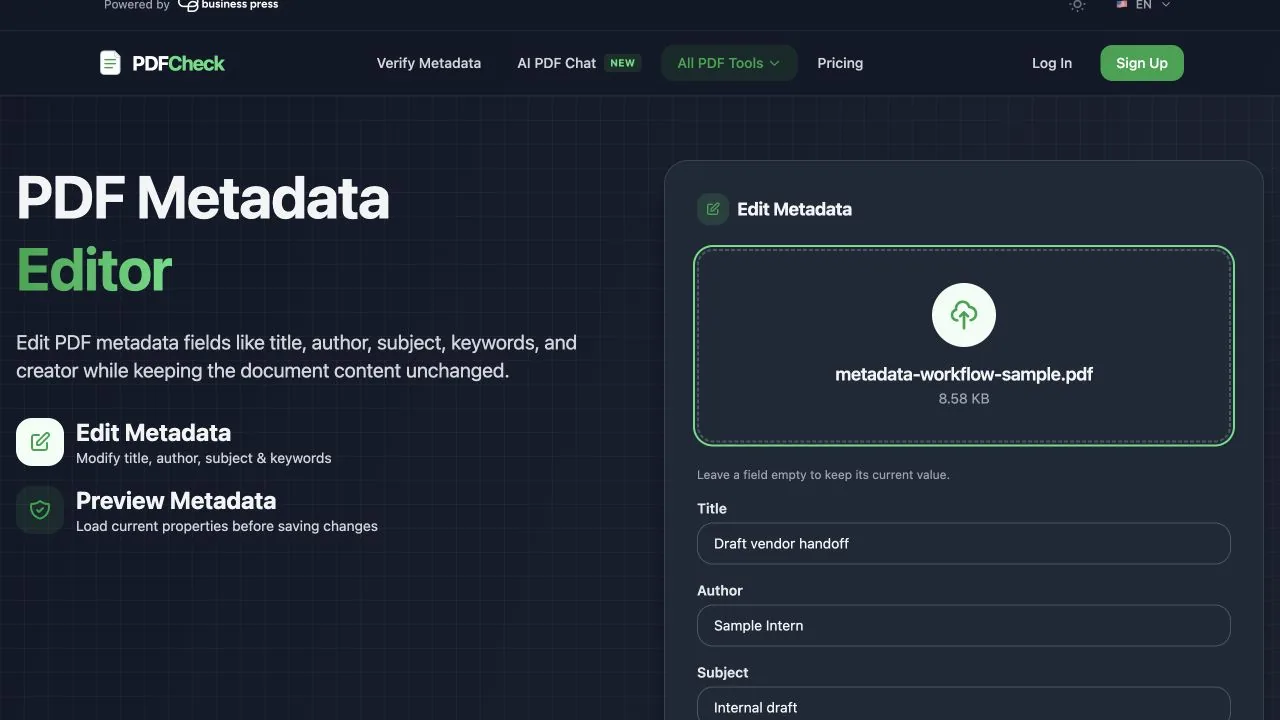
To edit PDF metadata safely, keep the original, work on an unsigned non-interactive copy, change only the fields you understand, download the new PDF, and reopen that exact download to verify the result. A metadata editor can change properties such as Title, Author, Subject, Keywords, and Creator. It does not change the visible words on the page.
Stop before editing if the PDF is digitally signed, is the only copy of an important record, or depends on forms, bookmarks, annotations, layers, attachments, scripts, or accessibility structure. In those cases, edit the source document and export a new PDF, or ask the document owner for an unsigned source.
60-second decision map
- Wrong title or author in a browser tab? Edit PDF metadata on a working copy.
- Wrong words, image, date, or price on the page? Edit the source document or visible PDF content instead.
- Need to remove personal fields before sharing? Use the PDF metadata remover.
- Signed PDF? Validate the signature and obtain an unsigned original before changing anything.
- Form, portfolio, layered, or accessibility-critical PDF? Re-export from the source and test the required behavior.
Filename, visible title, and metadata title are different
Renaming draft.pdf to vendor-handoff.pdf changes only the filename. The title shown in a browser tab or document-properties panel may come from the embedded Title field. The heading printed on page one is visible page content. One action does not reliably update the other two.
| What is wrong? | Where it lives | Right action |
|---|---|---|
| File name in Finder or Explorer | Filesystem | Rename the file |
| Title in a tab or Properties | PDF metadata | Edit the Title field |
| Heading printed on page one | Page content | Edit the source or page content |
| Browser still shows the filename | Viewer preference or missing title | Set Title, then test in the target viewer |
Adobe distinguishes document properties such as title and author from page content, while XMP can carry richer structured metadata. The Adobe metadata overview explains the document-information and XMP layers. If you only need to inspect fields first, use the PDF metadata checker and the guide to view PDF metadata online.
How to change PDF title and author online
- 1
Make a working copy
Keep the original unchanged. Use a neutral filename such as
vendor-handoff-working.pdf. Do not upload a confidential document to any third-party tool unless its handling terms fit your policy. - 2
Check signatures and special features
Run the original through the PDF signature checker. If signed, stop. Also note forms, bookmarks, links, attachments, annotations, layers, video, JavaScript, or required tags.
- 3
Load the working copy
Open the PDF Metadata Editor and upload the copy. Review every loaded value before replacing it.
- 4
Edit only the intended fields
Use a human-readable Title, a responsible person or organization for Author, a short Subject, specific Keywords, and the workflow or source application for Creator. PDFCheck reads Producer but does not offer it as a user-editable field; the rewritten copy records its producer automatically.
- 5
Download, rename, and reopen
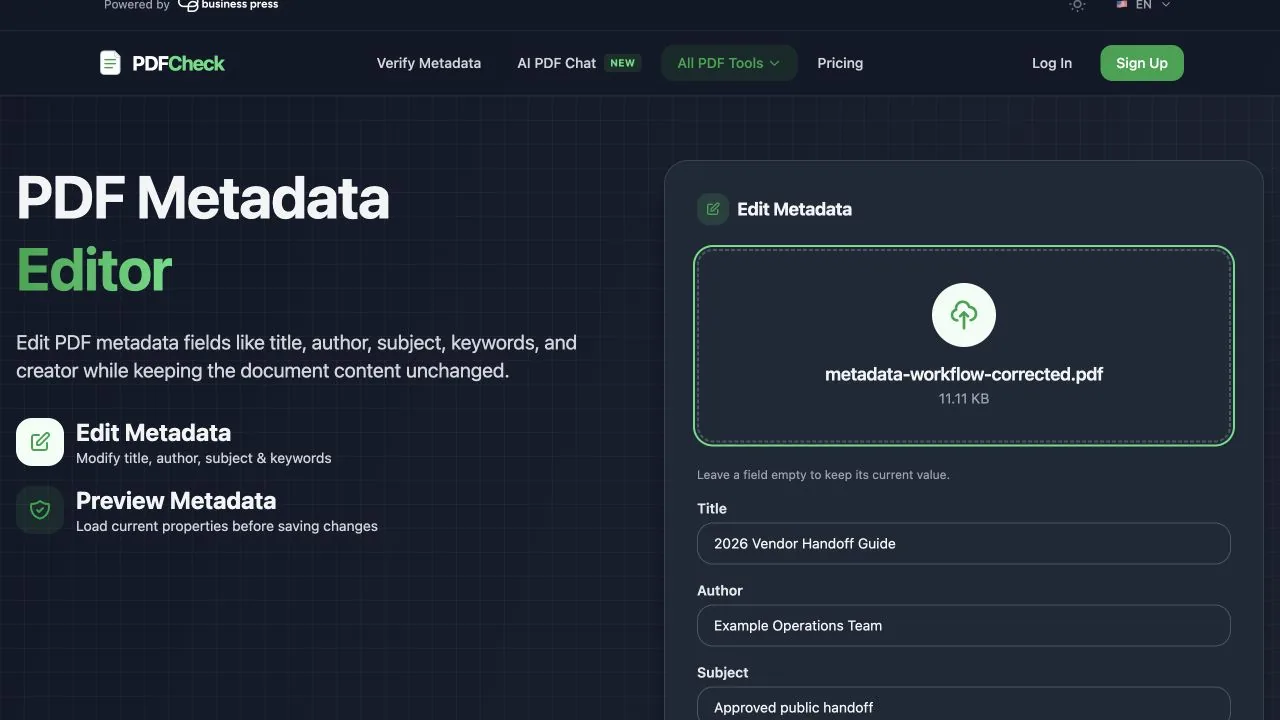
Download the new file, give it a clear final filename, then upload that exact download again. Confirm Title, Author, Subject, Keywords, and Creator. Open it in the viewer and workflow your recipient actually uses.
A realistic metadata rewrite
| Field | Before | After | Why |
|---|---|---|---|
| Title | Draft vendor handoff | 2026 Vendor Handoff Guide | Matches the document purpose |
| Author | Sample Intern | Example Operations Team | Names the accountable publisher |
| Subject | Internal draft | Approved public handoff | Removes an obsolete workflow label |
| Keywords | draft, sample, internal | handoff, approved, public | Supports accurate retrieval |
| Creator | Sample Writer 1.0 | Example Publishing Workflow | Describes the publishing workflow without claiming authorship |
Failure states and recovery actions
| Symptom | Likely reason | Recovery |
|---|---|---|
| The visible heading is still wrong | You changed metadata, not page content | Edit the source document and export again |
| The tab still shows the filename | Viewer ignores Title or its display preference is off | Test another viewer; set the viewer's document-title preference when available |
| A signature becomes invalid | The signed bytes were changed | Discard the edited copy, return to an unsigned source, then run the approved signing process again |
| A form, bookmark, attachment, or annotation is missing | The PDF was rewritten rather than patched in place | Use the original; edit metadata in the authoring system or a tool proven to preserve that feature |
| Author looks correct but is not trustworthy evidence | Metadata is editable | Verify provenance, signatures, delivery channel, and source records separately |
| Old fields still appear in another inspector | Information dictionary and XMP values may differ | Inspect both layers with a desktop metadata tool; re-export from the source if consistency matters |
Adobe states that signed PDFs can restrict edits and recommends returning to the unsigned original when changes are required. See signed PDF limitations and signature validation guidance.
PDFCheck capability boundary
PDFCheck can read and rewrite common Title, Author, Subject, Keywords, and Creator fields into a new PDF copy. It does not edit visible page text or prove authorship or authenticity. It does not preserve digital signatures or guarantee that forms, bookmarks, annotations, layers, attachments, scripts, multimedia, or accessibility tags survive the rewrite.
It also does not certify PDF/A or accessibility conformance. A useful Title helps people identify a document, but changing Title alone does not satisfy accessibility requirements. W3C's PDF18 technique treats a document title as one technique within a wider conformance process.
Final verification checklist
- □ The original is preserved separately.
- □ The downloaded copy has the intended filename and opens normally.
- □ Title, Author, Subject, Keywords, and Creator were checked on the downloaded copy.
- □ Page count and visible pages match the original.
- □ Search, copy, links, bookmarks, forms, attachments, and annotations needed by the recipient still work.
- □ The file passes the relevant PDF structure check.
- □ Any required digital signature was applied only after the final edit and validates in the target workflow.
- □ Accessibility, PDF/A, privacy, and organizational requirements were tested separately.
If the goal is privacy rather than correction, follow the separate guide to remove metadata from a PDF. If the goal is to determine whether a file was changed, metadata is only one clue; use the broader PDF edit-history checklist.